Multi-Factor Authentication (MFA) Validation for Nexus Connections
This document is intended for customers who use SAML Authentication in CPAM and need to validate their internal MFA requirements for Nexus connections. If your users authenticate with Local Authentication or AD/LDAP Authentication, CPAM can meet Nexus MFA requirements through the Mobile Authentication option without additional configuration. Navigate to Settings > Passwords & Accounts > Authentication Requirements section to configure.
CPAM uses email authentication for employment verification only. This option is not considered a valid secondary authentication for Nexus MFA Validation.
For customers whose users authenticate to CPAM using SAML Authentication with an SSO redirect to an internal Identity Provider (IdP), this document explains how to configure CPAM to validate your IdP’s existing MFA requirements.
When SAML Authentication is enabled, CPAM defers all authentication tasks to your internal IdP. The IdP performs both primary and MFA steps. CPAM then evaluates the SAML assertion returned during SSO and checks the AuthNContext Reference values provided by the IdP to confirm that MFA was completed before granting access to CPAM.
For CPAM customers using the Nexus to connect to VPAM applications, improper configuration of SAML Settings could result in locking users out completely. To minimize potential downtime, Imprivata recommends the following:
-
Test your SAML Configuration settings in a sandbox server, if available.
-
Ensure you have a locally-authenticated break-glass account with CPAM System Administrator permissions that is not a member of any internal groups recognized by your internal IdP.
Identifying Nexus Connection MFA Validation Requirements
When a Nexus VPAM Customer is enforcing MFA Validation for Nexus Connections, but your CPAM server is not configured with local MFA or to validate internal IdP MFA using SAML, your CPAM server displays the following error when a CPAM user is denied connection to a Gatekeeper.
The remote server requires Multi-factor Authentication of type (SMS_Auth, Mobile_Auth, SAML_MFA) in order to connect. Contact your server administrator to configure your user to use MFA.
This topic explains how CPAM System Administrators can configure their existing SAML Configuration to validate that their existing internal IdP's MFA requirements have been met. This ensures that users connecting to Nexus Gatekeepers meet the MFA requirements enforced by Nexus VPAM Customers.
Configure Nexus Authentication Requirements
Administrators can configure global Nexus Authentication Requirements to define whether Nexus connections require MFA and which MFA factors are allowed by default.
Configure these settings in Authentication Settings > Nexus Auth Requirements.
-
Set Enable MFA for Nexus connections to Yes or No.
-
Select the MFA options that are allowed for Nexus connections.
-
SMS
-
TOTP Mobile
-
SAML
-
-
Save the configuration.
Nexus partners must configure their MFA settings to match the selected MFA method. Otherwise, vendor connections are denied.
Configure a Vendor-Level MFA Override
Administrators can override the global Nexus MFA setting for a vendor when the vendor requires a different MFA policy.
-
Open the vendor configuration.
-
Set the vendor MFA requirement.
-
Default: Uses the global Nexus MFA policy.
-
Yes: Requires MFA for the vendor.
-
No: Does not require MFA for the vendor.
-
-
Save the configuration.
Audit Logging
Each Nexus connection attempt that is subject to MFA policy evaluation is logged.
Each audit record captures the following information:
-
The vendor ID.
-
The policy source that was applied: global default or vendor-level override.
-
The MFA factor the vendor representative used.
-
The policy outcome: allowed or blocked.
Supported SAML Protocol AuthN Context References
Imprivata does not build support for individual third-party Identity Providers (IdPs). Instead, Imprivata supports the underlying SAML 2.0 protocol, which each IdP implements in its own way. Because IdPs may treat SAML AuthNContext references differently (some using them as primary authentication, secondary authentication, or both) CPAM provides Advanced SAML Settings that allow administrators to define which AuthNContext values should count as valid MFA. During the SSO redirect to your internal IdP, CPAM checks the user’s SAML assertion for one of the approved secondary-authentication AuthNContext references.
The following IdP AuthN Context Reference options are currently supported in VPAM and CPAM as valid MFA responses:
| Identity Provider (IdP) | SAML AuthNContext Reference | Description |
|---|---|---|
| Microsoft Entra ID | http://schemas.microsoft.com/claims/multipleauthn
|
Indicates MFA validation through Entra ID. |
| REFEDS | https://refeds.org/profile/mfa
|
Federation standard for multi-factor authentication. |
| Stanford | https://saml.stanford.edu/profile/mfa/forced
|
Stanford-specific MFA context. |
| MobileTwoFactorContract | urn:oasis:names:tc:SAML:2.0:ac:classes:MobileTwoFactorContract
|
Recognized as valid MFA (two-factor mobile contract). |
| MobileTwoFactorUnregistered | urn:oasis:names:tc:SAML:2.0:ac:classes:MobileTwoFactorUnregistered
|
Valid MFA using unregistered two-factor mobile method. |
| X.509 | urn:oasis:names:tc:SAML:2.0:ac:classes:X509
|
Indicates authentication via X.509 certificate. |
If your IdP uses a different AuthNContext, contact support@imprivata.com.
Requirements
Before making adjustments to your SAML settings to validate IdP MFA, ensure you meet the following requirements:
-
You are a system administrator of the server.
-
You are a system administrator to the organization’s IdP (such as Entra ID, Okta, ADFS, or REFEDS).
-
You have configured at least one secondary method at the IdP level.
-
You have already configured SAML Authentication in your server under System Admin > Settings > SAML Settings.
-
You have access to at least one locally-authenticated break-glass account with System Administrator role or similar permissions.
Your IdP might require additional configuration.
Step-by-Step Configuration
Before making any adjustments to your CPAM server SAML Configurations, confirm the following topics with your internal IdP SAML Subject Matter Expert:
- Your IdP is configured to require MFA for internal users.
- Your IdP is able to return one of the supported SAML AuthN Context Reference options during SSO.
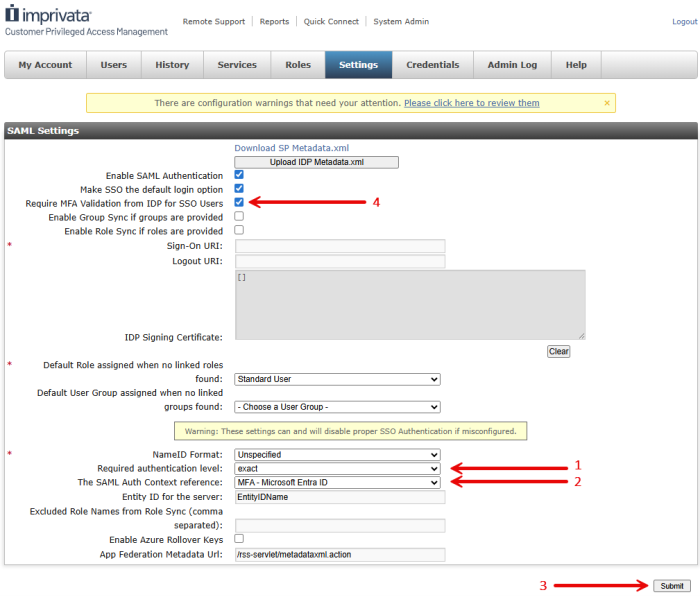
After you confirm requirements with your internal SME, navigate to System Admin > Settings > SAML Settings > Advanced Settings using a locally-authenticated break-glass account and follow these steps:
-
Set the Required authentication level to exact.
-
Select the AuthN Context Reference option that corresponds with your internal IdP's secondary authentication requirement.
Read the Supported Identity Providers and MFA Contexts for more information. -
Submit your SAML settings to confirm that SSO still allows users to authenticate and log into CPAM.
If SSO is unsuccessful, use the local system administrator account to log into CPAM and revert the SAML configuration to the original settings.After you confirm the SSO login is successful, continue to step 4.
-
Check the Require MFA Validation from IdP for SSO Users box.
Verify Your SAML Configuration Changes Before Connecting to a Nexus Gatekeeper
To test and validate your MFA implementation, follow these steps:
-
Click Submit in System Admin > Settings > SAML Settings.
-
Log out of your server.
-
Select Authenticate with Single Sign-On in the login page.
-
Authenticate using your IdP credentials.
-
Navigate to System Admin > Admin Log.
-
Open the User Activity tab and locate your login event.
-
Review the event details in the Authentication column.
The following image contains an unsuccessful implementation:
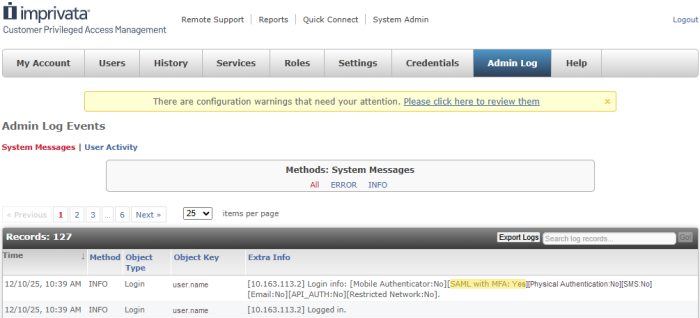
The highlighted flag must display the following to be successful:
SAML with MFA: Yes
Troubleshooting and Recovery
Errors during SAML configuration or MFA validation typically occur when:
-
The Identity Provider (IdP) does not transmit an MFA-compliant AuthNContext reference.
-
The Required authentication level or Auth Context reference is misconfigured.
-
Metadata or certificates are outdated.
-
Users are locked out due to SAML enforcement without a local administrator fallback.
-
The user does not have the required MFA method configured.
-
The partner configuration does not match the selected MFA method.
The following sections cover the most common recovery steps:
 Quick Recovery Steps
If users cannot log in after enabling SAML or MFA validation:
-
Log in using your locally-authenticated break-glass account.
This account should be configured before enabling SAML to ensure you can always access the system.
-
Navigate to System Admin > Settings > SAML Settings.
-
Revert the last changes made to your SAML settings page, to the prior successful configuration.
-
Click Submit.
-
Confirm that users can log in locally again.
-
Review and correct the SAML configuration before re-enabling authentication.
Common Configuration Issues and Solutions
| Issue | Possible Cause | Resolution |
|---|---|---|
| Connection to Nexus denied. | CPAM not transmitting MFA validation to VPAM. | Verify that Require MFA Validation from IDP for SSO Users is enabled and that MFA is detected as “Yes” in the Admin Log. |
| Admin Log shows “SAML with MFA: No”. | The IdP did not assert MFA in the SAML response. | Confirm that MFA is required in the IdP. Review the Advanced Settings section. |
| Connection to Nexus denied. | The vendor override differs from the global Nexus MFA policy. | Review the global Nexus MFA requirement and the vendor-level override. |
| Connection to Nexus denied. | The user does not have the required MFA method configured. | Configure and enable the required MFA method for the user. |


